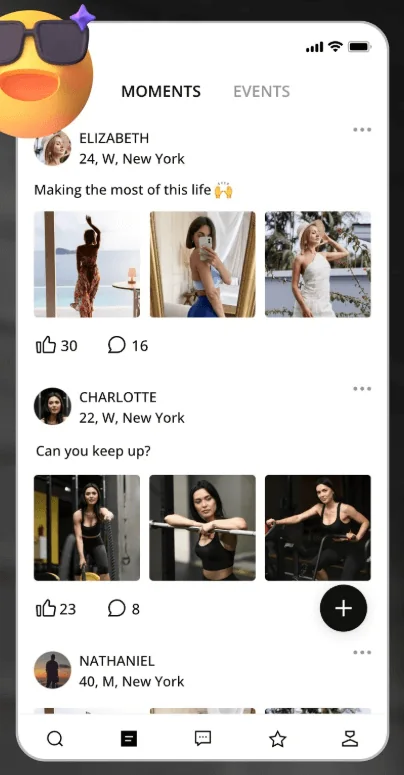
Add SugarDaddyMeet to your iPhone Home Screen
Open the site in Safari before starting. The Share menu and Home Screen option belong to Safari, so the steps may not appear the same way inside another browser.
Open SugarDaddyMeet
Join or sign in through Safari. The Home Screen option belongs to Safari, so begin there rather than inside another browser.

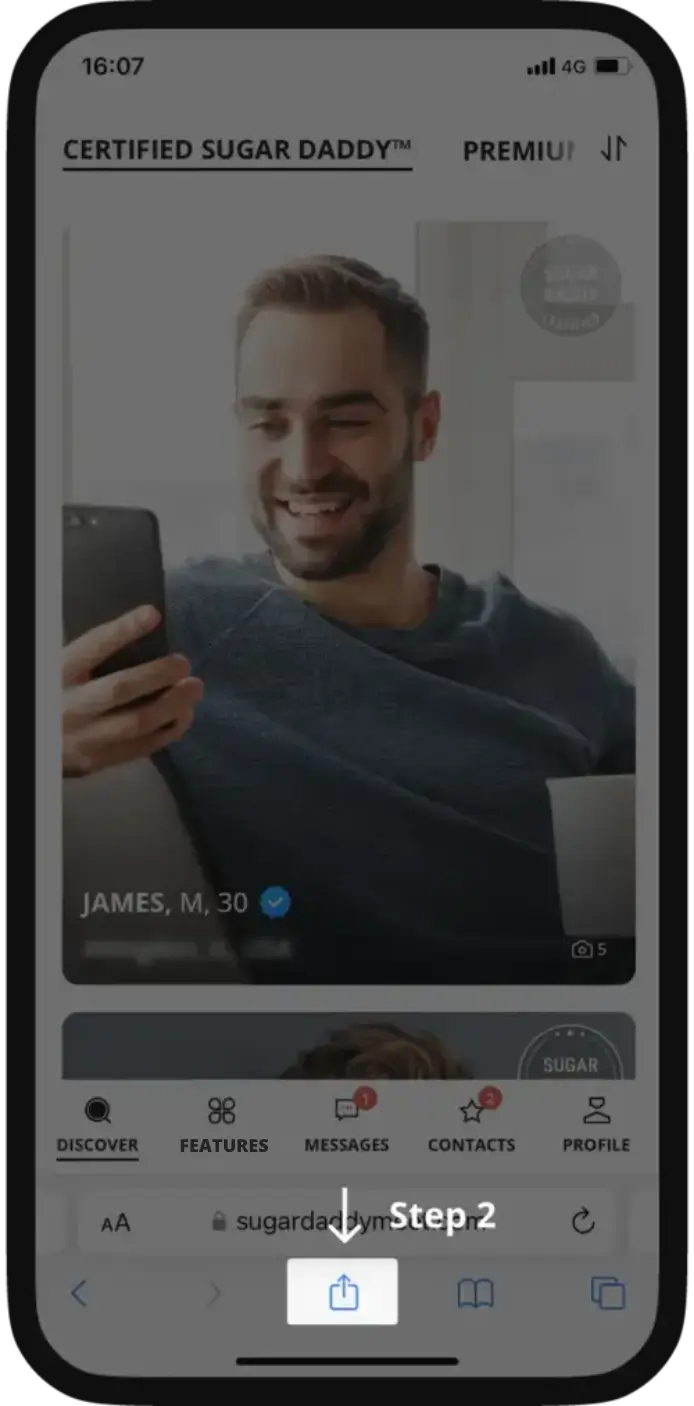
Tap the Share button
Use the Share icon below the address bar. Its position may vary slightly with the iOS version and Safari layout.
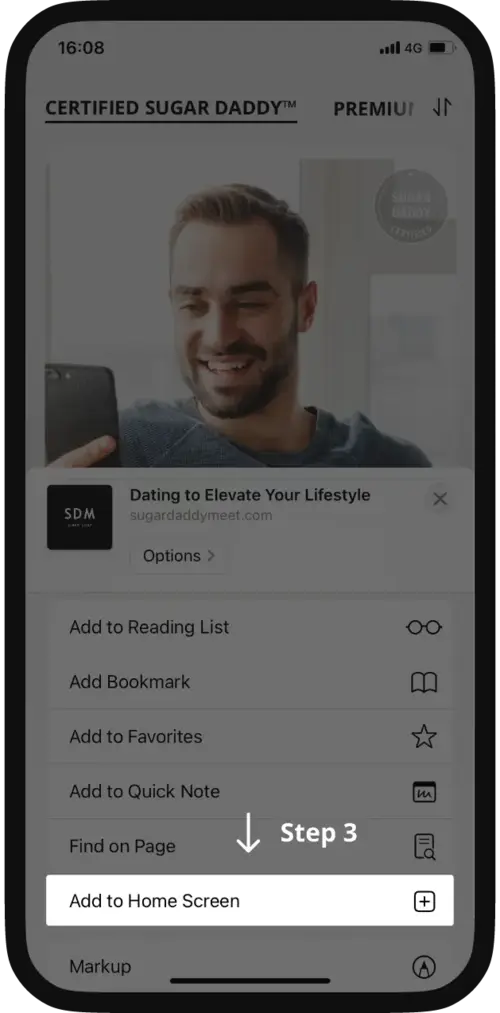
Choose Add to Home Screen
Scroll through the Safari share sheet if needed, then select the Home Screen action shown in the menu.
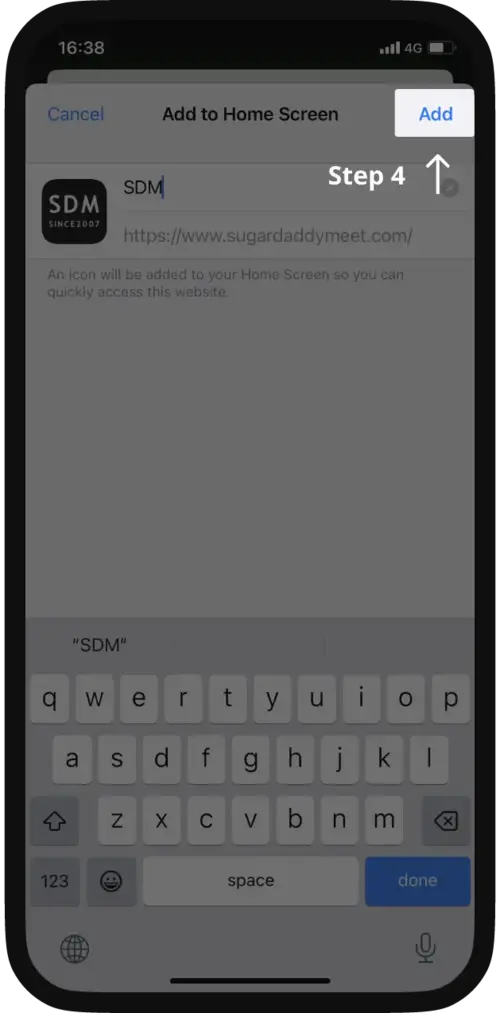
Confirm the name and tap Add
Keep or edit the shortcut name, then use Add in the top-right corner to place it on your iPhone.
Open the saved shortcut
The SDM icon now provides a direct route back to the mobile website. It remains a web shortcut, not an App Store installation.
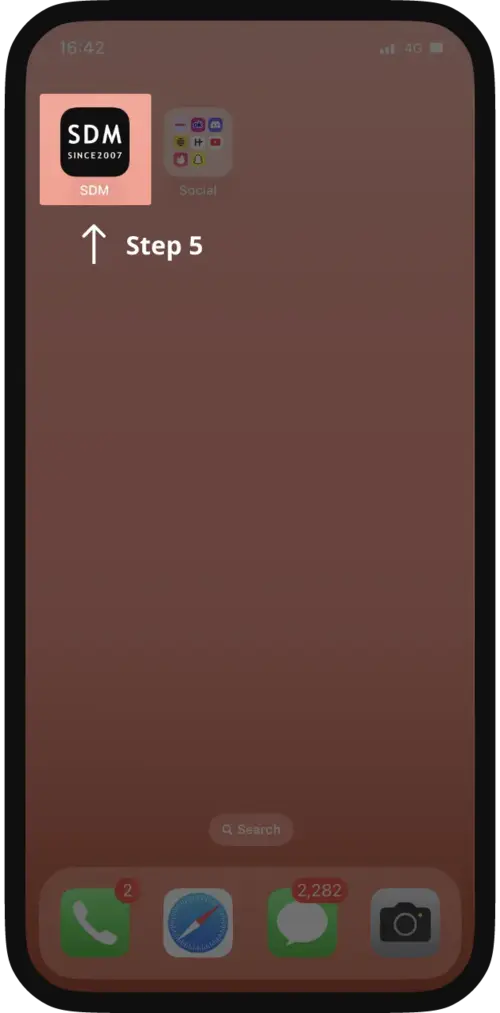
Screens shown are source product screenshots. Safari controls, labels, and interface details may change with iOS updates.
What the shortcut changes
The icon gives you a direct launch point from the Home Screen. It removes the need to type the address each time and can feel closer to an app window.
- It opens the mobile web experience.
- It uses the same SugarDaddyMeet account as the website.
- It does not create a second profile.
- Removing the icon does not delete your SugarDaddyMeet account.
If Share or Add to Home Screen is missing
First confirm that SugarDaddyMeet is open in Safari, not inside another app's built-in browser. Safari controls can move when Apple changes the toolbar layout, but the action remains in the Share menu.
- Open SugarDaddyMeet in Safari and look for the Share icon in the active toolbar.
- Scroll through the Share menu if Add to Home Screen is below the first group of actions.
- Let the site finish loading before opening the Share menu again.
- If you only need access, keep using the site in Safari; the saved icon is optional.
Why older results may show a different iPhone answer
Distribution changes, but old reviews and screenshots can remain indexed for years. An older instruction can be accurate for its publication date and still be wrong for today's setup. Use the date and destination together: current instructions should lead to SugarDaddyMeet, not a similarly named App Store product.
Android follows a different distribution route. If you use both platforms, compare the current SugarDaddyMeet Android APK instructions instead of transferring the iPhone steps.
Choose mobile or desktop for the task
The iPhone route is useful for quick access away from a computer. A larger screen may still be more comfortable for longer profile or settings sessions. See the SugarDaddyMeet mobile and desktop comparison before choosing your default.